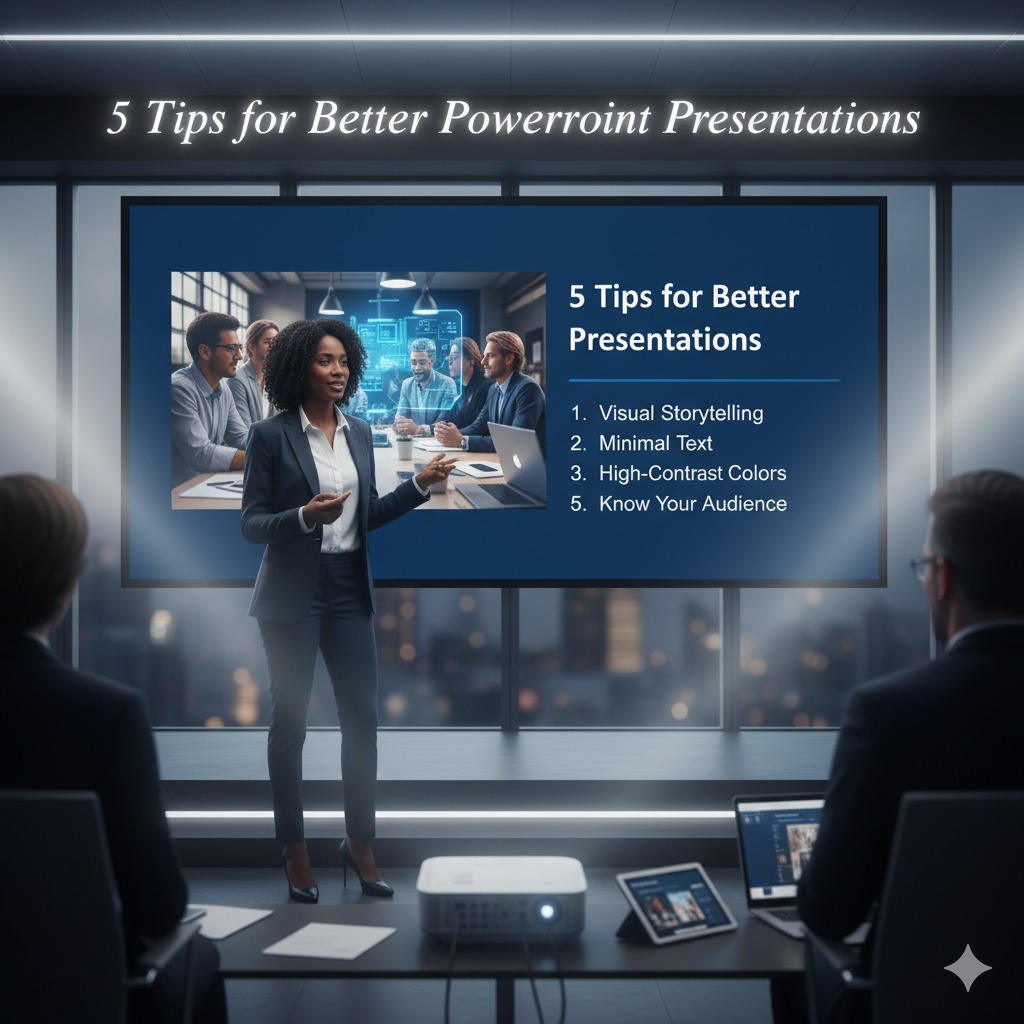
The ability to articulate complex ideas clearly and compellingly remains a cornerstone of professional success, and for many, **PowerPoint** is the canvas. Yet, the phrase ‘death by PowerPoint’ often echoes through conference rooms, a testament to presentations that fall short of their potential. For technology enthusiasts who appreciate efficiency, design, and impact, mediocre slides are simply not an option. This article delves into five actionable, tech-savvy strategies to transform your **PowerPoint presentations** from mere information dumps into truly captivating experiences, leveraging the powerful features within the software itself and embracing modern presentation principles.
Mastering the Art of Impactful PowerPoint Presentations
1. Streamline Your Content: Less is More
The cardinal sin of many presentations is information overload. Densely packed slides, overflowing with text, overwhelm the audience and dilute your message. For optimal engagement, embrace a minimalist approach. Think of each slide as a billboard, delivering one core idea with maximum visual impact. Instead of writing paragraphs, distill your points into concise bullet phrases, ideally adhering to the **6×6 rule** (no more than six lines of text, with no more than six words per line). Better yet, replace text entirely with high-quality visuals, charts, or diagrams that convey information more efficiently. Utilize your speaker notes in **PowerPoint** for the detailed explanations you’ll deliver verbally, freeing your slides to serve as visual anchors for your narrative. Modern **PowerPoint** versions even include a built-in feature called **Designer**, which can automatically suggest clean, professional layouts and design ideas based on your content, helping you achieve visual simplicity with minimal effort. This shift from dense text to visual cues makes your presentation easier to digest and significantly more memorable, fostering a stronger connection with your audience.
2. Embrace Visual Storytelling with High-Quality Media
Humans are inherently visual creatures. A captivating image or a well-placed video clip can convey emotions, data, and complex concepts far more effectively than words alone. Elevate your presentations by incorporating **high-resolution images**, **professional icons**, and short, impactful video segments. Avoid pixelated or generic stock photos; instead, source your visuals from reputable, **royalty-free platforms** like **Unsplash**, **Pexels**, or **Pixabay**, which offer stunning imagery that can truly enhance your message. When integrating video, keep clips concise and relevant, ensuring they add value without interrupting the flow excessively. Utilize **PowerPoint’s** robust media embedding features, making sure videos are linked or embedded correctly to avoid playback issues. Furthermore, employ **PowerPoint’s Morph transition** to create seamless, cinematic animations between slides, especially when transitioning between different elements of a visual story or zooming in on specific details. Consistent use of a strong visual theme throughout your presentation reinforces your brand and creates a cohesive, professional appearance, making your content more appealing and easier to follow for your technology-savvy audience.
3. Master the Art of Effective Typography and Color Palettes
Beyond compelling visuals, the subtle choices of typography and color significantly impact readability and professional perception. Select **readable fonts** that are clean and clear, particularly **sans-serif fonts** like **Calibri**, **Arial**, or **Helvetica**, which are excellent choices for on-screen presentations. Avoid ornate or overly decorative fonts that can be difficult to read from a distance. Ensure your **font size** is appropriate for visibility; a general guideline is a minimum of **24pt** for body text and larger for headings. Crucially, maintain high **color contrast** between your text and background to ensure accessibility and legibility for all audience members. Tools within **PowerPoint** and external online resources can help you generate a limited, consistent **color palette** that aligns with your message or brand. Aim for a palette of 3-5 complementary colors to maintain visual harmony and avoid a cluttered, distracting aesthetic. A well-chosen typography and color scheme not only makes your presentation more aesthetically pleasing but also subconsciously communicates professionalism and attention to detail, reinforcing your credibility and making your content resonate more deeply with an audience that values sleek design.
4. Leverage Interactive Elements and Advanced Features
To truly engage a tech-aware audience, go beyond static slides. **PowerPoint** offers a suite of advanced features that can transform your presentation into an interactive experience. Consider integrating **hyperlinks** to external websites for live demonstrations, or create internal links that allow you to jump to specific sections of your presentation on demand, providing a non-linear narrative flow. Embed relevant **audio clips** or even short, self-playing videos directly into your slides to add another layer of engagement. While animations can be overused, subtle and purposeful **transitions** (like **Fade** or **Push**) and animations (to highlight key data points) can guide the audience’s eye and emphasize important information without becoming distracting. The **Zoom feature** in **PowerPoint 365** is particularly powerful, allowing you to create dynamic, summary-level slides that link to individual sections, offering a sophisticated way to navigate complex topics. For real-time audience participation, consider integrating external polling tools like **Slido** or **Mentimeter** directly into your presentation, enabling live Q&A sessions or instant feedback polls. These interactive elements not only break the monotony but actively involve your audience, making your presentation more dynamic and memorable.
5. Practice, Prepare, and Utilize Presenter View
Even the most beautifully designed presentation can falter without solid delivery. Technology is a tool, but the presenter is the message. Thorough **rehearsal** is paramount. Practice your timing, transitions, and verbal explanations until they flow naturally. **PowerPoint’s Presenter View** is an invaluable asset for this stage. It allows you to see your current slide, the upcoming slide, and your **speaker notes** on your monitor, while the audience only sees the main presentation. This critical feature empowers you to stay on track, remember key talking points, and maintain eye contact with your audience without constantly looking back at the screen. For remote presentations, familiarizing yourself with **PowerPoint’s** built-in **laser pointer** and **pen tools** can significantly enhance your ability to highlight critical information on the fly. Always have backup plans: save your presentation to the cloud (**OneDrive**) and a USB drive, and arrive early to test the projector, audio, and any external devices. Your confidence in handling both the content and the technology will shine through, making your presentation not just informative but truly impactful, leaving a lasting impression on your audience.
In a world saturated with digital content, a well-crafted **PowerPoint presentation** stands out as a beacon of effective communication. By embracing these five technology-driven principles—streamlining content, leveraging high-quality visuals, mastering typography and color, integrating interactive elements, and meticulously practicing with **Presenter View**—you elevate your message from mundane to magnificent. For those who appreciate the synergy of design and functionality, these tips offer a pathway to not just convey information, but to inspire, persuade, and truly connect with your audience. The power to transform your presentations lies within your grasp; harness these strategies and become a master of the digital stage.